Key takeaways
- Capture on Windows, frame in Chrome: Snipping Tool or FramedShot capture produces a PNG; framed browser screenshot work happens in the FramedShot editor.
- Sweet spot: Docs, bug reports, changelogs, and walkthroughs where a browser mockup screenshot reads as product UI in context.
- Padding and background usually lift quality as much as the frame; the browser mockup generator explains the full capability set.
- Cluster hygiene: generic framing questions belong in how to add a browser frame to a screenshot; this page adds Windows-specific habits and destinations.
Quick answer: add a browser frame to a screenshot on Windows
- Get a PNG — Region capture with Win+Shift+S, FramedShot’s area capture from Chrome, or an existing image from File Explorer.
- Open FramedShot in Chrome — Install the extension once; load the image via drag-and-drop or upload.
- Enable the browser frame — In the editor, use the Layout / framing controls; adjust padding and background so the subject is not cramped.
- Export — Save at the scale your destination needs (docs and tickets often benefit from 2× export). Paste or attach the finished image into Teams, Outlook, Notion, or your ticket system.
That is the shortest path to put screenshot in browser frame on a PC without Photoshop or Figma.
Before and after: flat capture vs framed browser screenshot
Before (flat): A rectangle of page content floats in the doc. Viewers squint at crop edges and guess whether this was a browser, a Figma frame, or a PDF.
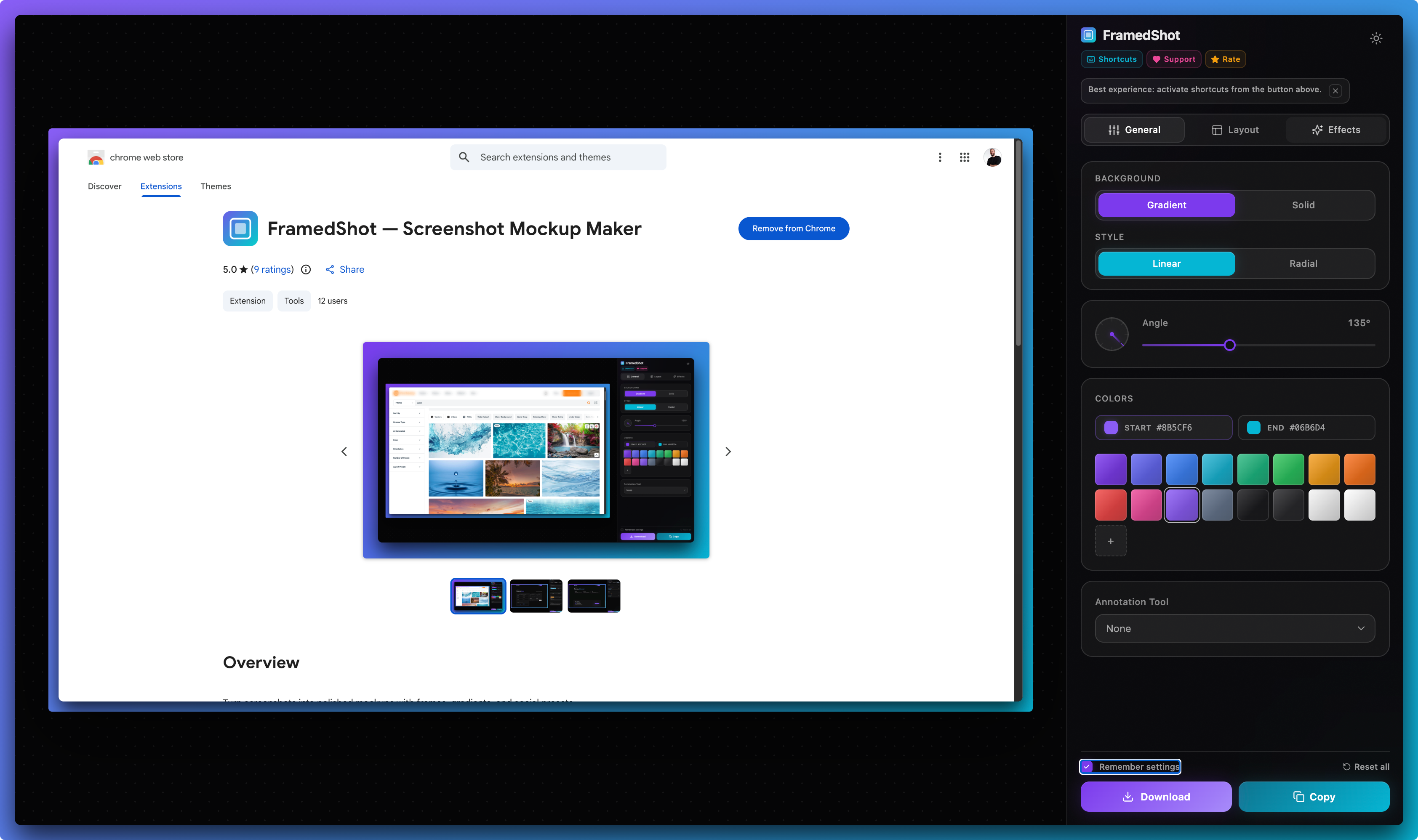
After (framed): The same content sits inside recognizable browser chrome on an intentional background. The image reads as “web app in use,” which is what browser mockup generator-style output is for.
The contrast matters most in bug report threads and documentation where you ship dozens of images per quarter.
Best use cases on Windows
Bug reports
Engineering and QA triage faster when the window, URL, and UI state read as one unit. On Windows, tickets often land in Azure DevOps, Jira in the browser, or Linear. Pair with the bug report screenshot guide when you also need arrows, redaction, or step numbering.
Documentation and tutorials
Help centers and internal wikis (Notion, Confluence, GitBook) reward visual consistency. See the documentation and tutorial screenshots use case and the documentation screenshot workflow guide for narrative structure.
Changelogs and release notes
On Windows, the capture might come from Edge or Chrome; the frame in FramedShot keeps the release graphic on-brand. Use the changelog screenshot workflow when you are building a full release visual kit.
Product walkthroughs
Sales decks, Loom thumbnails, and internal demos benefit when the first slide still looks like “browser” rather than “mystery rectangle.”
When a browser frame helps vs when it does not
Helps when: the story is “here is our web app / admin / storefront;” you need a consistent silhouette across many screenshots; the audience is mixed and the frame signals product context in one glance.
Less ideal when: you are zoomed into a tiny icon or a single form field; the crop is already tight for one callout; you need print at odd sizes—check export scale and padding.
For the full decision framework, the add a browser frame to a screenshot guide goes deeper on tradeoffs.
Windows-specific habits
Snipping Tool and clipboard: Many teams press Win+Shift+S, paste into Slack, then realize the image needs a frame. Cleaner habit: save the PNG or open FramedShot first, frame, then share. That prevents unpolished versions from spreading in thread history.
Multi-monitor and scaling: On 125% or 150% display scaling, captures can look sharp on your panel but soft when others zoom in a ticket. Higher-scale export from FramedShot often matches how assets look on retina-style external monitors.
Chrome as the hub: FramedShot is a Chrome extension. Edge users can capture in Edge and upload the PNG into FramedShot—framing stays in the Chrome tab.
macOS-only tools: CleanShot X does not run on Windows. FramedShot runs wherever Chrome runs, including Windows—useful if you are comparing browser mockup generator options and hit macOS-only tools in search results.
Step-by-step in FramedShot (Windows-oriented)
- Install FramedShot from the Chrome Web Store if you have not already. Pin the extension for faster access.
- Capture or import — From Chrome: use FramedShot’s tab or area capture so the image opens in the editor. From Snipping Tool: save a PNG, then drag it into FramedShot from File Explorer.
- Crop if needed — Remove second-monitor junk or taskbar bleed before framing.
- Apply the browser frame — Enable the frame in the Layout section. Choose light/dark or Windows- vs macOS-style chrome to match your doc or brand defaults.
- Set padding and background — Breathing room and a neutral or gradient background are where mockup quality usually shows up.
- Annotate after layout — Arrows and labels after the frame is stable.
- Export — Pick format and scale for where the image will live. Attach to Teams, Jira, Notion, or your docs CMS.
For field-level detail on each control, use how to add a browser frame to a screenshot so this page does not duplicate the full tutorial.
FAQ
Do I need a separate app to add a browser frame on Windows?
No separate design app is required. FramedShot runs in Chrome and adds the frame in-editor. Capture with Windows tools or FramedShot, then frame and export in the same Chrome workflow.
Does this guide replace the main browser-frame how-to?
No. Use this page for Windows capture habits and workplace context. Use how to add a browser frame to a screenshot for the full framing and export walkthrough without the OS angle.
Can I use Edge to browse and still frame in FramedShot?
Yes. Capture in Edge, save or copy the PNG, and open it in FramedShot in Chrome. Framing happens in the extension editor.
Will a browser frame make every screenshot look more professional?
Often, but not always. Frames help when browser context matters. For ultra-tight crops, a frame can add clutter—see when a browser frame helps vs when it does not above.
Where does “browser mockup generator” fit in?
It is the product-level description of FramedShot’s framing and styling capability. Start from the browser mockup generator page if you are evaluating features before install.
Install FramedShot for Chrome on Windows
Turn plain captures into browser mockup-ready images—frame, pad, export—without leaving the browser.
Add FramedShot for Chrome — free