Why Xnapper users end up here
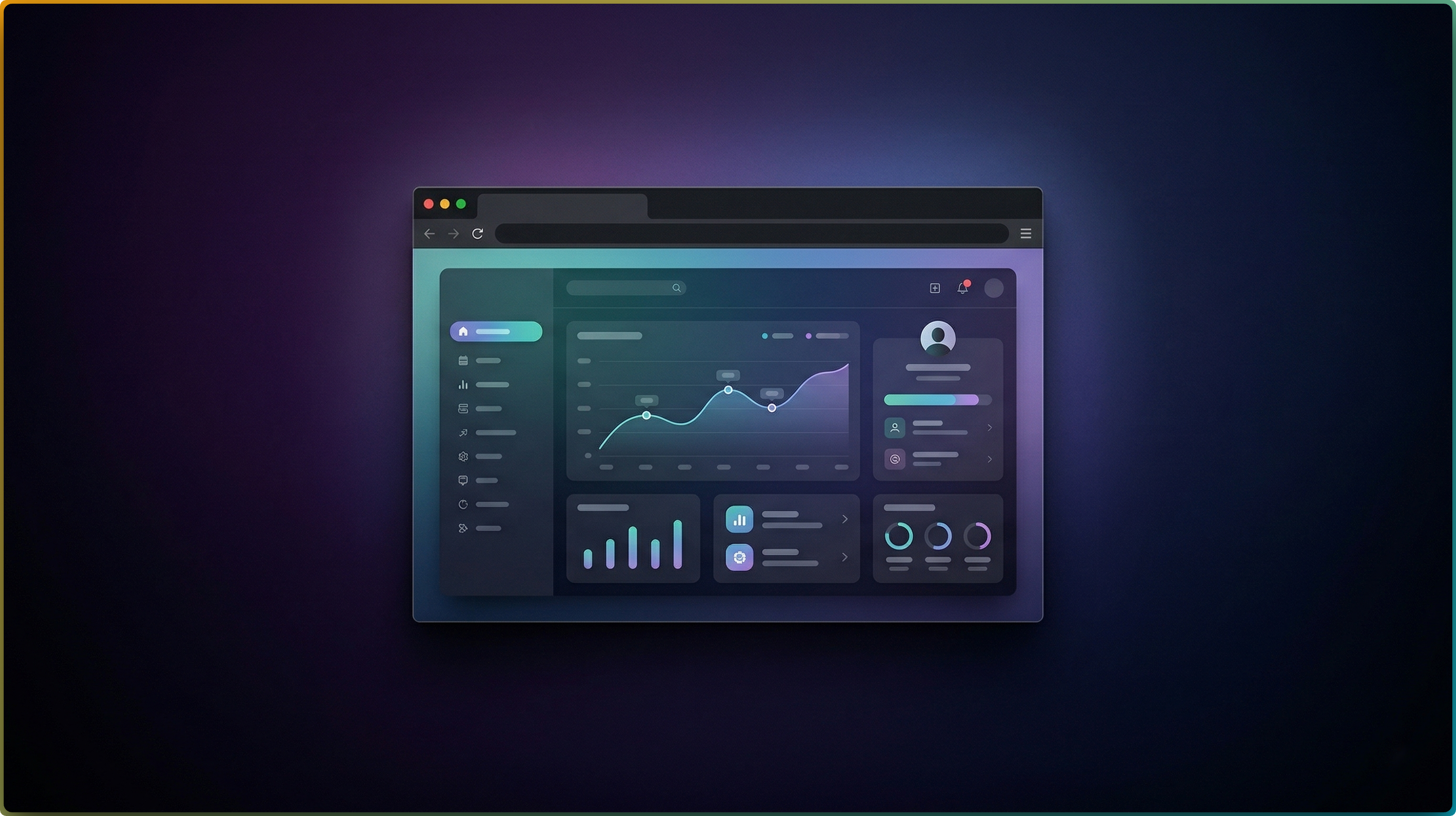
Xnapper's appeal is the speed of going from raw capture to share-ready image. The browser frame, the gradient background, the rounded corners, the export — all in a few clicks. When Windows users hit the "no Windows version" wall, they usually try one of three workarounds: a Mac-style mockup tool that lives behind a paywall, a generic image editor that requires manual layer work, or an online uploader that ships their screenshots through someone else's servers. None of those match the original Xnapper feel.
FramedShot replicates the core flow without those compromises. It's free, it doesn't require an account, and nothing leaves your browser. You install the extension, capture a tab or upload an image, pick a browser frame, and export. The whole loop takes the same handful of seconds.
What FramedShot does that matches Xnapper
Browser frames. Realistic browser window mockups — macOS and Windows styles, light and dark themes — with controls for spacing and background. The browser mockup generator covers the same "wrap a screenshot in a clean frame" workflow that made Xnapper popular.
Gradient and solid backgrounds. Drop your framed screenshot onto a colored background for thumbnails, social posts, or release notes. Same visual outcome.
Annotations and redaction. Arrows, highlights, text, and blur or pixelate for sensitive content. Xnapper covers basic annotations; FramedShot covers the same plus a full redaction layer for API keys, emails, and personal data. See the screenshot redaction guide if that's part of your workflow.
Social media presets. Export at the right dimensions for X, LinkedIn, and other platforms without manually resizing.
One-click copy and export. Save as PNG, copy to clipboard, or export a batch pack.
What FramedShot does that Xnapper doesn't
Three things matter for Windows users specifically:
It runs on Windows. The whole point.
It's local-first. Xnapper processes screenshots on your Mac. Online alternatives upload yours to a server. FramedShot processes everything inside the Chrome tab — no upload, no account, no telemetry on your screenshot content. For developers redacting API keys or anyone capturing customer data, that's not a nice-to-have, it's the requirement.
It's free with no watermark. Xnapper is paid. Most Xnapper alternatives that run on Windows are either paid or stamp a watermark on the export. FramedShot is free to install, with core framing and export at no cost.
How to use it on Windows
- Install FramedShot from the Chrome Web Store.
- Click the extension icon and capture the current tab, select a region, or upload an existing screenshot.
- Pick a browser frame from the gallery.
- Add a background, annotations, or redactions if needed.
- Export — copy to clipboard or save as PNG.
That's the whole flow. No login, no project files, no sync. For spacing, background, and export choices tailored to Windows captures, see how to add a browser frame to a screenshot on Windows.
When Xnapper is still the better choice
If you're on a Mac and you want a native desktop app with a system-wide hotkey and OS-level integration, Xnapper is built for that. FramedShot lives in the browser, which means it's ideal for screenshots of web pages, web apps, dashboards, and documentation — and less suited for capturing native desktop windows outside the browser. For most product, marketing, and developer screenshot work, the browser is where the screenshots come from anyway, so the trade-off rarely matters. But it's worth knowing.
Free Xnapper alternative — available right now
No signup, no upload, no watermark. If you've been waiting for a Windows version of Xnapper, this is the closest thing.
Install FramedShot free