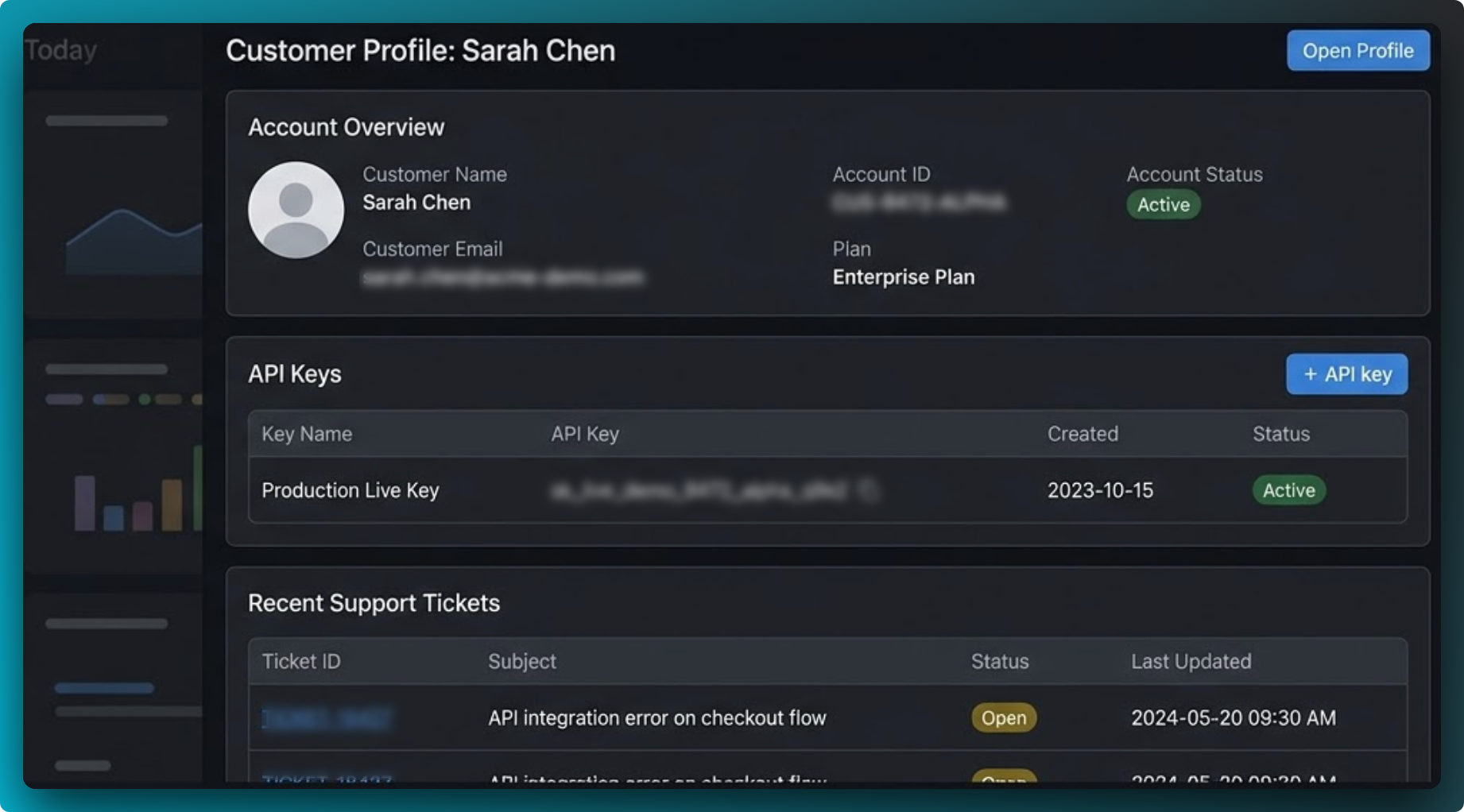
What this feature protects
Teams regularly leak account IDs, API keys, private URLs, and customer data in screenshots. Redaction removes this risk at the source by masking fields before copy or export.
How screenshot redaction works in FramedShot
- Capture or upload an image in the editor.
- Select the redaction method that matches the context.
- Apply masks to sensitive values in both content and edge UI.
- Export or copy a privacy-safe screenshot.
Where this is most useful
This workflow is built for support responses, bug reports, internal docs, and public launch content where screenshots often contain hidden sensitive fields.
Redaction checklist before export
- Mask account IDs, API keys, tokens, customer emails, and internal hostnames.
- Check browser chrome and sidebars, not only the center content.
- Use stronger masking for credentials and values that should not be guessed.
- Preview once at full size before copying or downloading.
FAQ
When should I use pixelate instead of blur?
Use pixelate for stronger obfuscation on sensitive values like API keys and account identifiers.
What parts of a screenshot are easiest to forget during redaction?
Browser chrome, side panels, and edge widgets are often missed even when the main panel is clean.
How do I verify the screenshot is safe before export?
Review the full image at 100% scale and re-check both main content and peripheral UI before sharing.
Use the free screenshot redactor tool
Open FramedShot and redact directly in your browser-first workflow.
Open Redaction Landing