When this use case appears
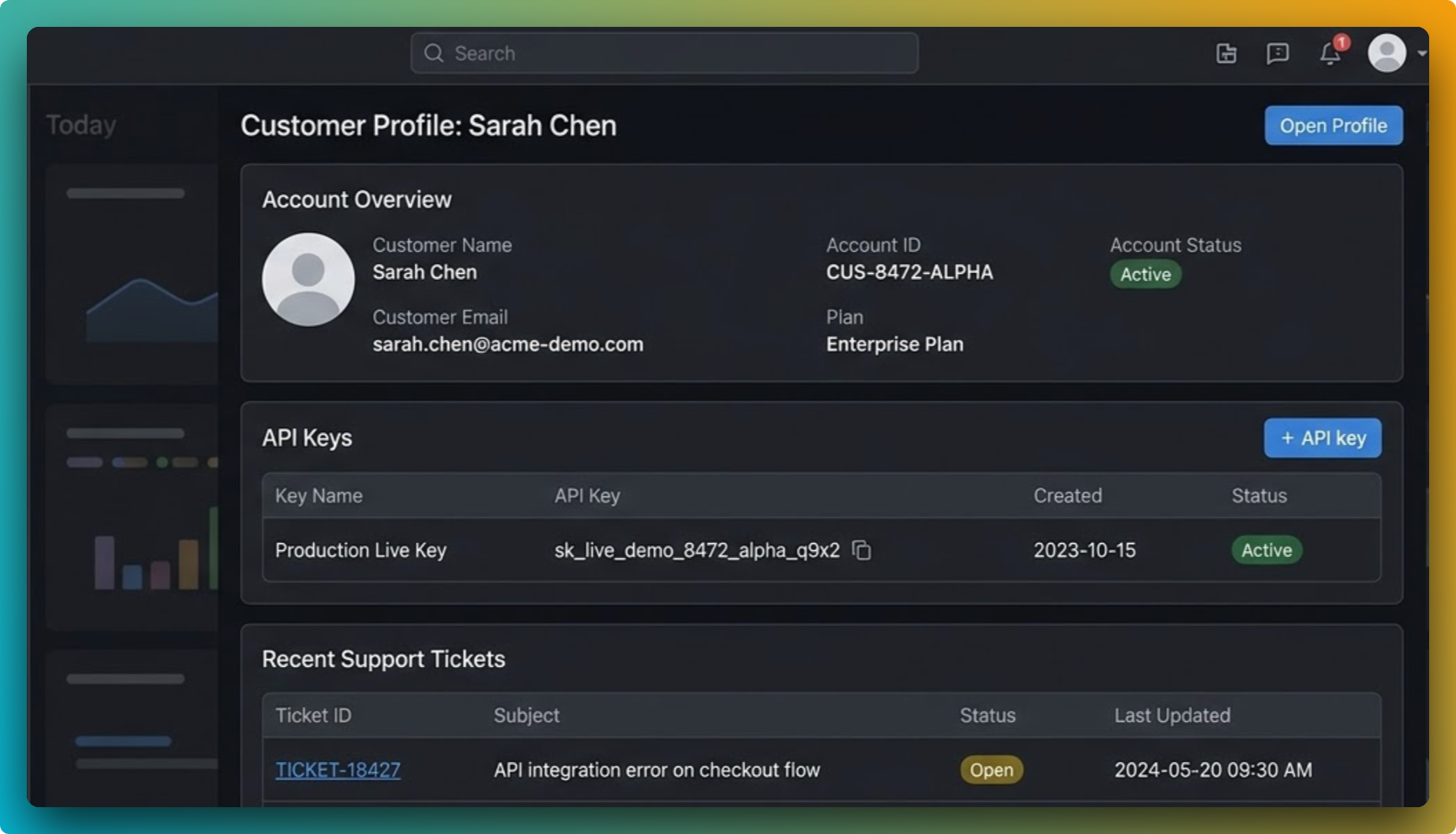
You need to report a bug from staging or production, but the screenshot includes user identifiers, API values, or internal URLs that cannot be posted in plain form.
Why FramedShot helps
- Annotations point to the exact UI failure area.
- Redaction tools hide sensitive values before export.
- Local processing keeps screenshot data in-browser.
Recommended workflow
- Capture the failing state with enough UI context.
- Add arrows or highlights to direct attention.
- Redact PII, API keys, and internal identifiers.
- Export and attach to your bug tracking ticket.
What makes engineering screenshots actionable
Actionable bug screenshots always include context: page state, visible trigger, and clear issue location. A screenshot without annotation forces engineers to guess, while an over-annotated screenshot hides the defect. Use one callout for the failure itself and optional secondary callouts for reproduction clues.
For a tactical annotation breakdown, use the how to annotate screenshots in Chrome guide. For an end-to-end walkthrough of what a good bug report screenshot actually looks like, read the bug report screenshot guide. For the broader engineering page, see screenshot tool for developers. Coming from another markup tool? Compare the free Markup Hero alternative.
When the ticket needs the whole window to read as a polished attachment (staging URL, tabs, and UI together), add a browser frame after capture: see add a browser frame to a screenshot or jump straight to the browser mockup generator.
For recurring QA reports, keep a fixed style and naming pattern (for example: `checkout-error-before-fix.png`). This makes async triage and historical diff review much faster.
Privacy check before sending
- Mask customer identifiers and internal account IDs.
- Mask API keys, tokens, and environment values.
- Review browser chrome and edge UI for accidental leaks.
If the bug report includes a “before vs after fix” visual, use side-by-side comparison layouts so engineering and product can validate the change in one frame.
When teams triage a high volume of incidents, consistent screenshot formatting becomes operationally important. Standardized annotation style and naming conventions reduce review time and make regression history easier to search later.
Create safer bug report visuals
Use FramedShot to generate bug screenshots that are both actionable and privacy-safe.
Install FramedShot